Thursday, June 29, 2017

Entity Framework Working with Transactions

https://msdn.microsoft.com/en-us/library/dn456843(v=vs.113).aspx


Entity Framework Working with Transactions (EF6 Onwards)

 
Updated: October 23, 2016
EF6 Onwards Only - The features, APIs, etc. discussed in this page were introduced in Entity Framework 6. If you are using an earlier version, some or all of the information does not apply.
This document will describe using transactions in EF6 including the enhancements we have added since EF5 to make working with transactions easy.
In all versions of Entity Framework, whenever you execute SaveChanges() to insert, update or delete on the database the framework will wrap that operation in a transaction. This transaction lasts only long enough to execute the operation and then completes. When you execute another such operation a new transaction is started.
Starting with EF6 Database.ExecuteSqlCommand() by default will wrap the command in a transaction if one was not already present. There are overloads of this method that allow you to override this behavior if you wish. Also in EF6 execution of stored procedures included in the model through APIs such as ObjectContext.ExecuteFunction() does the same (except that the default behavior cannot at the moment be overridden).
In either case, the isolation level of the transaction is whatever isolation level the database provider considers its default setting. By default, for instance, on SQL Server this is READ COMMITTED.
Entity Framework does not wrap queries in a transaction.
This default functionality is suitable for a lot of users and if so there is no need to do anything different in EF6; just write the code as you always did.
However some users require greater control over their transactions – this is covered in the following sections.
Prior to EF6 Entity Framework insisted on opening the database connection itself (it threw an exception if it was passed a connection that was already open). Since a transaction can only be started on an open connection, this meant that the only way a user could wrap several operations into one transaction was either to use a TransactionScope or use the ObjectContext.Connection property and start calling Open() and BeginTransaction()directly on the returned EntityConnection object. In addition, API calls which contacted the database would fail if you had started a transaction on the underlying database connection on your own.
Note: The limitation of only accepting closed connections was removed in Entity Framework 6. For details, see Connection Management (EF6 Onwards).
Starting with EF6 the framework now provides:
  1. Database.BeginTransaction() : An easier method for a user to start and complete transactions themselves within an existing DbContext – allowing several operations to be combined within the same transaction and hence either all committed or all rolled back as one. It also allows the user to more easily specify the isolation level for the transaction.
  2. Database.UseTransaction() : which allows the DbContext to use a transaction which was started outside of the Entity Framework.

Combining several operations into one transaction within the same context

Database.BeginTransaction() has two overrides – one which takes an explicit IsolationLevel and one which takes no arguments and uses the default IsolationLevel from the underlying database provider. Both overrides return a DbContextTransaction object which provides Commit() and Rollback()methods which perform commit and rollback on the underlying store transaction.
The DbContextTransaction is meant to be disposed once it has been committed or rolled back. One easy way to accomplish this is the using(…) {…}syntax which will automatically call Dispose() when the using block completes:
using System; 
using System.Collections.Generic; 
using System.Data.Entity; 
using System.Data.SqlClient; 
using System.Linq; 
using System.Transactions; 
 
namespace TransactionsExamples 
{ 
    class TransactionsExample 
    { 
        static void StartOwnTransactionWithinContext() 
        { 
            using (var context = new BloggingContext()) 
            { 
                using (var dbContextTransaction = context.Database.BeginTransaction()) 
                { 
                    try 
                    { 
                        context.Database.ExecuteSqlCommand( 
                            @"UPDATE Blogs SET Rating = 5" + 
                                " WHERE Name LIKE '%Entity Framework%'" 
                            ); 
 
                        var query = context.Posts.Where(p => p.Blog.Rating >= 5); 
                        foreach (var post in query) 
                        { 
                            post.Title += "[Cool Blog]"; 
                        } 
 
                        context.SaveChanges(); 
 
                        dbContextTransaction.Commit(); 
                    } 
                    catch (Exception) 
                    { 
                        dbContextTransaction.Rollback(); 
                    } 
                } 
            } 
        } 
    } 
}

Note: Beginning a transaction requires that the underlying store connection is open. So calling Database.BeginTransaction() will open the connection if it is not already opened. If DbContextTransaction opened the connection then it will close it when Dispose() is called.

Passing an existing transaction to the context

Sometimes you would like a transaction which is even broader in scope and which includes operations on the same database but outside of EF completely. To accomplish this you must open the connection and start the transaction yourself and then tell EF a) to use the already-opened database connection, and b) to use the existing transaction on that connection.
To do this you must define and use a constructor on your context class which inherits from one of the DbContext constructors which take i) an existing connection parameter and ii) the contextOwnsConnection boolean.
Note: The contextOwnsConnection flag must be set to false when called in this scenario. This is important as it informs Entity Framework that it should not close the connection when it is done with it (e.g. see line 4 below):
using (var conn = new SqlConnection("...")) 
{ 
    conn.Open(); 
    using (var context = new BloggingContext(conn, contextOwnsConnection: false)) 
    { 
    } 
}

Furthermore, you must start the transaction yourself (including the IsolationLevel if you want to avoid the default setting) and let the Entity Framework know that there is an existing transaction already started on the connection (see line 33 below).
Then you are free to execute database operations either directly on the SqlConnection itself, or on the DbContext. All such operations are executed within one transaction. You take responsibility for committing or rolling back the transaction and for calling Dispose() on it, as well as for closing and disposing the database connection. E.g.:
using System; 
using System.Collections.Generic; 
using System.Data.Entity; 
using System.Data.SqlClient; 
using System.Linq; 
sing System.Transactions; 
 
namespace TransactionsExamples 
{ 
     class TransactionsExample 
     { 
        static void UsingExternalTransaction() 
        { 
            using (var conn = new SqlConnection("...")) 
            { 
               conn.Open(); 
 
               using (var sqlTxn = conn.BeginTransaction(System.Data.IsolationLevel.Snapshot)) 
               { 
                   try 
                   { 
                       var sqlCommand = new SqlCommand(); 
                       sqlCommand.Connection = conn; 
                       sqlCommand.Transaction = sqlTxn; 
                       sqlCommand.CommandText = 
                           @"UPDATE Blogs SET Rating = 5" + 
                            " WHERE Name LIKE '%Entity Framework%'"; 
                       sqlCommand.ExecuteNonQuery(); 
 
                       using (var context =  
                         new BloggingContext(conn, contextOwnsConnection: false)) 
                        { 
                            context.Database.UseTransaction(sqlTxn); 
 
                            var query =  context.Posts.Where(p => p.Blog.Rating >= 5); 
                            foreach (var post in query) 
                            { 
                                post.Title += "[Cool Blog]"; 
                            } 
                           context.SaveChanges(); 
                        } 
 
                        sqlTxn.Commit(); 
                    } 
                    catch (Exception) 
                    { 
                        sqlTxn.Rollback(); 
                    } 
                } 
            } 
        } 
    } 
}

Notes:
  • You can pass null to Database.UseTransaction() to clear Entity Framework’s knowledge of the current transaction. Entity Framework will neither commit nor rollback the existing transaction when you do this, so use with care and only if you’re sure this is what you want to do.
  • You will see an exception from Database.UseTransaction() if you pass a transaction:
    • When the Entity Framework already has an existing transaction
    • When Entity Framework is already operating within a TransactionScope
    • Whose connection object is null (i.e. one which has no connection – usually this is a sign that that transaction has already completed)
    • Whose connection object does not match the Entity Framework’s connection.
This section details how the above transactions interact with:
  • Connection resiliency
  • Asynchronous methods
  • TransactionScope transactions

Connection Resiliency

The new Connection Resiliency feature does not work with user-initiated transactions. For details, see Limitations with Retrying Execution Strategies.

Asynchronous Programming

The approach outlined in the previous sections needs no further options or settings to work with the asynchronous query and save methods. But be aware that, depending on what you do within the asynchronous methods, this may result in long-running transactions – which can in turn cause deadlocks or blocking which is bad for the performance of the overall application.

TransactionScope Transactions

Prior to EF6 the recommended way of providing larger scope transactions was to use a TransactionScope object:
using System.Collections.Generic; 
using System.Data.Entity; 
using System.Data.SqlClient; 
using System.Linq; 
using System.Transactions; 
 
namespace TransactionsExamples 
{ 
    class TransactionsExample 
    { 
        static void UsingTransactionScope() 
        { 
            using (var scope = new TransactionScope(TransactionScopeOption.Required)) 
            { 
                using (var conn = new SqlConnection("...")) 
                { 
                    conn.Open(); 
 
                    var sqlCommand = new SqlCommand(); 
                    sqlCommand.Connection = conn; 
                    sqlCommand.CommandText = 
                        @"UPDATE Blogs SET Rating = 5" + 
                            " WHERE Name LIKE '%Entity Framework%'"; 
                    sqlCommand.ExecuteNonQuery(); 
 
                    using (var context = 
                        new BloggingContext(conn, contextOwnsConnection: false)) 
                    { 
                        var query = context.Posts.Where(p => p.Blog.Rating > 5); 
                        foreach (var post in query) 
                        { 
                            post.Title += "[Cool Blog]"; 
                        } 
                        context.SaveChanges(); 
                    } 
                } 
 
                scope.Complete(); 
            } 
        } 
    } 
}

The SqlConnection and Entity Framework would both use the ambient TransactionScope transaction and hence be committed together.
Starting with .NET 4.5.1 TransactionScope has been updated to also work with asynchronous methods via the use of theTransactionScopeAsyncFlowOption enumeration:
using System.Collections.Generic; 
using System.Data.Entity; 
using System.Data.SqlClient; 
using System.Linq; 
using System.Transactions; 
 
namespace TransactionsExamples 
{ 
    class TransactionsExample 
    { 
        public static void AsyncTransactionScope() 
        { 
            using (var scope = new TransactionScope(TransactionScopeAsyncFlowOption.Enabled)) 
            { 
                using (var conn = new SqlConnection("...")) 
                { 
                    await conn.OpenAsync(); 
 
                    var sqlCommand = new SqlCommand(); 
                    sqlCommand.Connection = conn; 
                    sqlCommand.CommandText = 
                        @"UPDATE Blogs SET Rating = 5" + 
                            " WHERE Name LIKE '%Entity Framework%'"; 
                    await sqlCommand.ExecuteNonQueryAsync(); 
 
                    using (var context = new BloggingContext(conn, contextOwnsConnection: false)) 
                    { 
                        var query = context.Posts.Where(p => p.Blog.Rating > 5); 
                        foreach (var post in query) 
                        { 
                            post.Title += "[Cool Blog]"; 
                        } 
 
                        await context.SaveChangesAsync(); 
                    } 
                } 
            } 
        } 
    } 
}

There are still some limitations to the TransactionScope approach:
  • Requires .NET 4.5.1 or greater to work with asynchronous methods.
  • It cannot be used in cloud scenarios unless you are sure you have one and only one connection (cloud scenarios do not support distributed transactions).
  • It cannot be combined with the Database.UseTransaction() approach of the previous sections.
  • It will throw exceptions if you issue any DDL (e.g. because of a Database Initializer) and have not enabled distributed transactions through the MSDTC Service.
Advantages of the TransactionScope approach:
  • It will automatically upgrade a local transaction to a distributed transaction if you make more than one connection to a given database or combine a connection to one database with a connection to a different database within the same transaction (note: you must have the MSDTC service configured to allow distributed transactions for this to work).
  • Ease of coding. If you prefer the transaction to be ambient and dealt with implicitly in the background rather than explicitly under you control then the TransactionScope approach may suit you better.
In summary, with the new Database.BeginTransaction() and Database.UseTransaction() APIs above, the TransactionScope approach is no longer necessary for most users. If you do continue to use TransactionScope then be aware of the above limitations. We recommend using the approach outlined in the previous sections instead where possible.

Wednesday, June 21, 2017

Export List To Excel

 public static void ExportToExcel(List<T52DataModel> myList)
        {
            string fileName = $"C:\\T52{DateTime.Now.Date.ToString("yyyyMMdd")}.xls";

            List<string> result = new List<string>();
            result.Add(String.Join(String.Empty, typeof(T52DataModel).GetProperties().Select(i => String.Format("{0}\t", i.Name)))); // Headers
            result.AddRange(myList.Select(i => String.Join("\t", i.GetType().GetProperties().Select(t => t.GetValue(i, null))))); // Lines

            File.WriteAllLines(fileName, result);

        }

How to return a list of weekend dates between 2 dates

Use the DateTime.DayOfWeek property.

https://msdn.microsoft.com/en-US/library/system.datetime.dayofweek(v=vs.110).aspx

static public List<string> GetDates(DateTime start_date, DateTime end_date)
    {
        List<string> days_list = new List<string>();
         for (DateTime date = start_date; date <= end_date; date = date.AddDays(1))
        {
            if (date.DayOfWeek == DayOfWeek.Sunday || date.DayOfWeek == DayOfWeek.Saturday)
                 days_list.Add(date.ToShortDateString());
        }

        return days_list;

Wednesday, April 12, 2017

How to work with Hangfire in C# Take advantage of Hangfire, an open source job scheduling framework, to schedule fire-and-forget, recurring tasks in Web applications sans the need of a Windows Service


Scheduling jobs in Web applications is a challenge, and you can choose from many frameworks for the task. A popular open source library, Hangfire is one framework that can be used for scheduling background jobs in .Net.

Why should I use Hangfire?

There are many job scheduling frameworks available today. Why then should you use Hangfire instead of, say, Quartz.Net, which is another popular framework that has long been in use? Well, one of the major drawbacks of Quartz.Net is that it needs a Windows Service. On the contrary, you don't need a Windows Service to use Hangfire in your application. The ability to run without a Windows Service makes Hangfire a good choice over Quartz.Net. Hangfire takes advantage of the request processing pipeline of ASP.Net for processing and executing jobs.
Note that Hangfire is not limited to Web applications; you can also use it in your Console applications. The documentation for Hangfire is very detailed and well structured, and the best feature is its built-in dashboard. The Hangfire dashboard shows detailed information on jobs, queues, status of jobs, and so on.

Getting started

To create a new project in Visual Studio that leverages Hangfire, follow these steps:
  1. Open Visual Studio 2015
  2. Click on File > New > Project
  3. Select Visual C# > Web from the list of the project templates displayed
  4. Select ASP.Net Web application from the list of the Web project templates
  5. Save the project with a name
The next step is installing and configuring Hangfire in your application; the process is quite straightforward. You can install Hangfire via the NuGet Package Manager in Visual Studio. Alternatively, you can also use the Package Manager Console to install the Hangfire library. The default installation of Hangfire uses SQL Server for storing scheduling information. Additionally, you can install Hangfire.Redis if you use Redis instead for storage.
Note that Hangfire stores your jobs in a persistent storage -- you need to configure the storage before you start using Hangfire. To do this, create a database and specify the database credentials in the connection string in the configuration file. You don’t need to create the tables in your database; Hangfire will do that for you automatically. We will see how and when it will be done later.
Now that the database has been created and the connection string information specified in the configuration file of the application, the next step is to modify the Startup.cs file and provide the necessary connection string information. The following code listing illustrates how the Startup.cs file looks after the configuration details have been specified.
using Hangfire;
using Microsoft.Owin;
using Owin;
using System;
[assembly: OwinStartupAttribute(typeof(HangFire.Startup))]
namespace HangFire
{
    public partial class Startup
    {
        public void Configuration(IAppBuilder app)
        {
            ConfigureAuth(app);
            GlobalConfiguration.Configuration
                .UseSqlServerStorage("DefaultConnection");
            BackgroundJob.Enqueue(() => Console.WriteLine("Getting Started with HangFire!"));
            app.UseHangfireDashboard();
            app.UseHangfireServer();
        }
    }
}
You're all set. When you run the application and suffix the URL with "/hangfire", you can see the Hangfire dashboard. When you execute this the very first time, a new table is created in the database. The tables that are created include AggregatedCounter, Counter, Hash, Job, JobParameter, JobQueue, List, Schema, Server, Set, and State. Creating a fire-and-forget background in Hangfire is quite simple. You can create a background job using the Enqueue() method of the BackgroundJob class. Here's an example:
BackgroundJob.Enqueue(() => Console.WriteLine("This is a fire-and-forget job that would run in the background."));
A delayed background job is one that waits (for the delay interval), then executes much the same way as a normal fire-and-forget background job. The following code snippet illustrates how you can create a delayed background job using the Schedule() method of the BackgroundJob class.
BackgroundJob.Schedule(() => Console.WriteLine("This background job would execute after a delay."), TimeSpan.FromMilliseconds(1000));
If you were to execute jobs that would execute after a specific interval of time, you would need to create recurring jobs in Hangfire. To create a recurring job, you would have to leverage the RecurringJob class. Note that you can also specify “cron” expressions when scheduling jobs in Hangfire. The following code snippet illustrates how you can create a recurring job using the Hangfire library.
RecurringJob.AddOrUpdate(() => Console.WriteLine("This job will execute once in every minute"), Cron.Minutely);
Check out the Hangfire Highlighter tutorial for more information.

Wednesday, April 5, 2017

Handling Concurrency with the Entity Framework 6 in an ASP.NET MVC 5 Application

The Contoso University sample web application demonstrates how to create ASP.NET MVC 5 applications using the Entity Framework 6 Code First and Visual Studio 2013. For information about the tutorial series, see the first tutorial in the series.
In earlier tutorials you learned how to update data. This tutorial shows how to handle conflicts when multiple users update the same entity at the same time.
You'll change the web pages that work with the Department entity so that they handle concurrency errors. The following illustrations show the Index and Delete pages, including some messages that are displayed if a concurrency conflict occurs.
Department_Index_page_before_edits
Department_Edit_page_2_after_clicking_Save

Concurrency Conflicts

A concurrency conflict occurs when one user displays an entity's data in order to edit it, and then another user updates the same entity's data before the first user's change is written to the database. If you don't enable the detection of such conflicts, whoever updates the database last overwrites the other user's changes. In many applications, this risk is acceptable: if there are few users, or few updates, or if isn't really critical if some changes are overwritten, the cost of programming for concurrency might outweigh the benefit. In that case, you don't have to configure the application to handle concurrency conflicts.

Pessimistic Concurrency (Locking)

If your application does need to prevent accidental data loss in concurrency scenarios, one way to do that is to use database locks. This is calledpessimistic concurrency. For example, before you read a row from a database, you request a lock for read-only or for update access. If you lock a row for update access, no other users are allowed to lock the row either for read-only or update access, because they would get a copy of data that's in the process of being changed. If you lock a row for read-only access, others can also lock it for read-only access but not for update.
Managing locks has disadvantages. It can be complex to program. It requires significant database management resources, and it can cause performance problems as the number of users of an application increases. For these reasons, not all database management systems support pessimistic concurrency. The Entity Framework provides no built-in support for it, and this tutorial doesn't show you how to implement it.

Optimistic Concurrency

The alternative to pessimistic concurrency is optimistic concurrency. Optimistic concurrency means allowing concurrency conflicts to happen, and then reacting appropriately if they do. For example, John runs the Departments Edit page, changes the Budget amount for the English department from $350,000.00 to $0.00.
Changing_English_dept_budget_to_100000
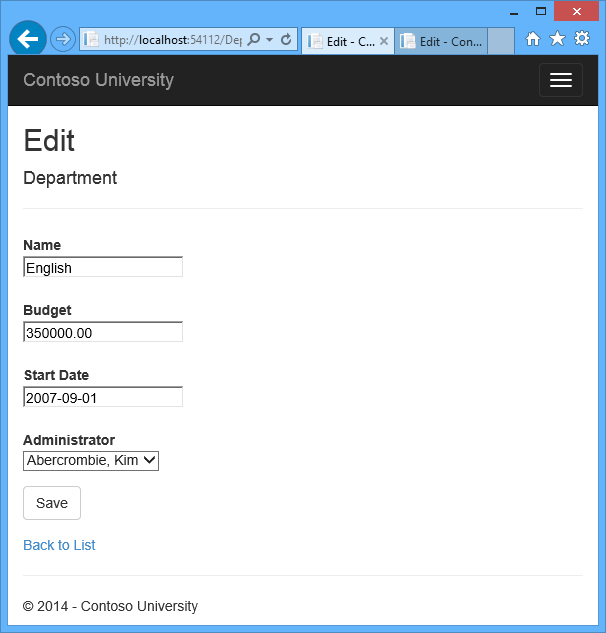
Before John clicks Save, Jane runs the same page and changes the Start Date field from 9/1/2007 to 8/8/2013.
Changing_English_dept_start_date_to_1999
John clicks Save first and sees his change when the browser returns to the Index page, then Jane clicks Save. What happens next is determined by how you handle concurrency conflicts. Some of the options include the following:
  • You can keep track of which property a user has modified and update only the corresponding columns in the database. In the example scenario, no data would be lost, because different properties were updated by the two users. The next time someone browses the English department, they'll see both John's and Jane's changes — a start date of 8/8/2013 and a budget of Zero dollars.
    This method of updating can reduce the number of conflicts that could result in data loss, but it can't avoid data loss if competing changes are made to the same property of an entity. Whether the Entity Framework works this way depends on how you implement your update code. It's often not practical in a web application, because it can require that you maintain large amounts of state in order to keep track of all original property values for an entity as well as new values. Maintaining large amounts of state can affect application performance because it either requires server resources or must be included in the web page itself (for example, in hidden fields) or in a cookie.
  • You can let Jane's change overwrite John's change. The next time someone browses the English department, they'll see 8/8/2013 and the restored $350,000.00 value. This is called a Client Wins or Last in Wins scenario. (All values from the client take precedence over what's in the data store.) As noted in the introduction to this section, if you don't do any coding for concurrency handling, this will happen automatically.
  • You can prevent Jane's change from being updated in the database. Typically, you would display an error message, show her the current state of the data, and allow her to reapply her changes if she still wants to make them. This is called a Store Wins scenario. (The data-store values take precedence over the values submitted by the client.) You'll implement the Store Wins scenario in this tutorial. This method ensures that no changes are overwritten without a user being alerted to what's happening.

Detecting Concurrency Conflicts

You can resolve conflicts by handling OptimisticConcurrencyException exceptions that the Entity Framework throws. In order to know when to throw these exceptions, the Entity Framework must be able to detect conflicts. Therefore, you must configure the database and the data model appropriately. Some options for enabling conflict detection include the following:
  • In the database table, include a tracking column that can be used to determine when a row has been changed. You can then configure the Entity Framework to include that column in the Where clause of SQL Update or Delete commands.
    The data type of the tracking column is typically rowversion. The rowversion value is a sequential number that's incremented each time the row is updated. In an Update or Delete command, the Where clause includes the original value of the tracking column (the original row version). If the row being updated has been changed by another user, the value in the rowversion column is different than the original value, so the Update or Delete statement can't find the row to update because of the Where clause. When the Entity Framework finds that no rows have been updated by the Update or Delete command (that is, when the number of affected rows is zero), it interprets that as a concurrency conflict.
  • Configure the Entity Framework to include the original values of every column in the table in the Where clause of Update and Deletecommands.
    As in the first option, if anything in the row has changed since the row was first read, the Where clause won't return a row to update, which the Entity Framework interprets as a concurrency conflict. For database tables that have many columns, this approach can result in very large Where clauses, and can require that you maintain large amounts of state. As noted earlier, maintaining large amounts of state can affect application performance. Therefore this approach is generally not recommended, and it isn't the method used in this tutorial.
    If you do want to implement this approach to concurrency, you have to mark all non-primary-key properties in the entity you want to track concurrency for by adding the ConcurrencyCheck attribute to them. That change enables the Entity Framework to include all columns in the SQL WHERE clause of UPDATE statements.
In the remainder of this tutorial you'll add a rowversion tracking property to the Department entity, create a controller and views, and test to verify that everything works correctly.

Add an Optimistic Concurrency Property to the Department Entity

In Models\Department.cs, add a tracking property named RowVersion:
Copy
C#
public class Department
{
    public int DepartmentID { get; set; }

    [StringLength(50, MinimumLength = 3)]
    public string Name { get; set; }

    [DataType(DataType.Currency)]
    [Column(TypeName = "money")]
    public decimal Budget { get; set; }

    [DataType(DataType.Date)]
    [DisplayFormat(DataFormatString = "{0:yyyy-MM-dd}", ApplyFormatInEditMode = true)]
    [Display(Name = "Start Date")]
    public DateTime StartDate { get; set; }

    [Display(Name = "Administrator")]
    public int? InstructorID { get; set; }

    [Timestamp]
    public byte[] RowVersion { get; set; }

    public virtual Instructor Administrator { get; set; }
    public virtual ICollection<Course> Courses { get; set; }
}
The Timestamp attribute specifies that this column will be included in the Where clause of Update and Delete commands sent to the database. The attribute is called Timestamp because previous versions of SQL Server used a SQL timestamp data type before the SQL rowversion replaced it. The .Net type for rowversion is a byte array.
If you prefer to use the fluent API, you can use the IsConcurrencyToken method to specify the tracking property, as shown in the following example:
Copy
C#
modelBuilder.Entity<Department>()
    .Property(p => p.RowVersion).IsConcurrencyToken();
By adding a property you changed the database model, so you need to do another migration. In the Package Manager Console (PMC), enter the following commands:
Copy
console
Add-Migration RowVersion
Update-Database

Modify the Department Controller

In Controllers\DepartmentController.cs, add a using statement:
Copy
C#
using System.Data.Entity.Infrastructure;
In the DepartmentController.cs file, change all four occurrences of "LastName" to "FullName" so that the department administrator drop-down lists will contain the full name of the instructor rather than just the last name.
Copy
C#
ViewBag.InstructorID = new SelectList(db.Instructors, "ID", "FullName");
Replace the existing code for the HttpPost Edit method with the following code:
Copy
C#
[HttpPost]
[ValidateAntiForgeryToken]
public async Task<ActionResult> Edit(int? id, byte[] rowVersion)
{
    string[] fieldsToBind = new string[] { "Name", "Budget", "StartDate", "InstructorID", "RowVersion" };

    if (id == null)
    {
        return new HttpStatusCodeResult(HttpStatusCode.BadRequest);
    }

    var departmentToUpdate = await db.Departments.FindAsync(id);
    if (departmentToUpdate == null)
    {
        Department deletedDepartment = new Department();
        TryUpdateModel(deletedDepartment, fieldsToBind);
        ModelState.AddModelError(string.Empty,
            "Unable to save changes. The department was deleted by another user.");
        ViewBag.InstructorID = new SelectList(db.Instructors, "ID", "FullName", deletedDepartment.InstructorID);
        return View(deletedDepartment);
    }

    if (TryUpdateModel(departmentToUpdate, fieldsToBind))
    {
        try
        {
            db.Entry(departmentToUpdate).OriginalValues["RowVersion"] = rowVersion;
            await db.SaveChangesAsync();

            return RedirectToAction("Index");
        }
        catch (DbUpdateConcurrencyException ex)
        {
            var entry = ex.Entries.Single();
            var clientValues = (Department)entry.Entity;
            var databaseEntry = entry.GetDatabaseValues();
            if (databaseEntry == null)
            {
                ModelState.AddModelError(string.Empty,
                    "Unable to save changes. The department was deleted by another user.");
            }
            else
            {
                var databaseValues = (Department)databaseEntry.ToObject();

                if (databaseValues.Name != clientValues.Name)
                    ModelState.AddModelError("Name", "Current value: "
                        + databaseValues.Name);
                if (databaseValues.Budget != clientValues.Budget)
                    ModelState.AddModelError("Budget", "Current value: "
                        + String.Format("{0:c}", databaseValues.Budget));
                if (databaseValues.StartDate != clientValues.StartDate)
                    ModelState.AddModelError("StartDate", "Current value: "
                        + String.Format("{0:d}", databaseValues.StartDate));
                if (databaseValues.InstructorID != clientValues.InstructorID)
                    ModelState.AddModelError("InstructorID", "Current value: "
                        + db.Instructors.Find(databaseValues.InstructorID).FullName);
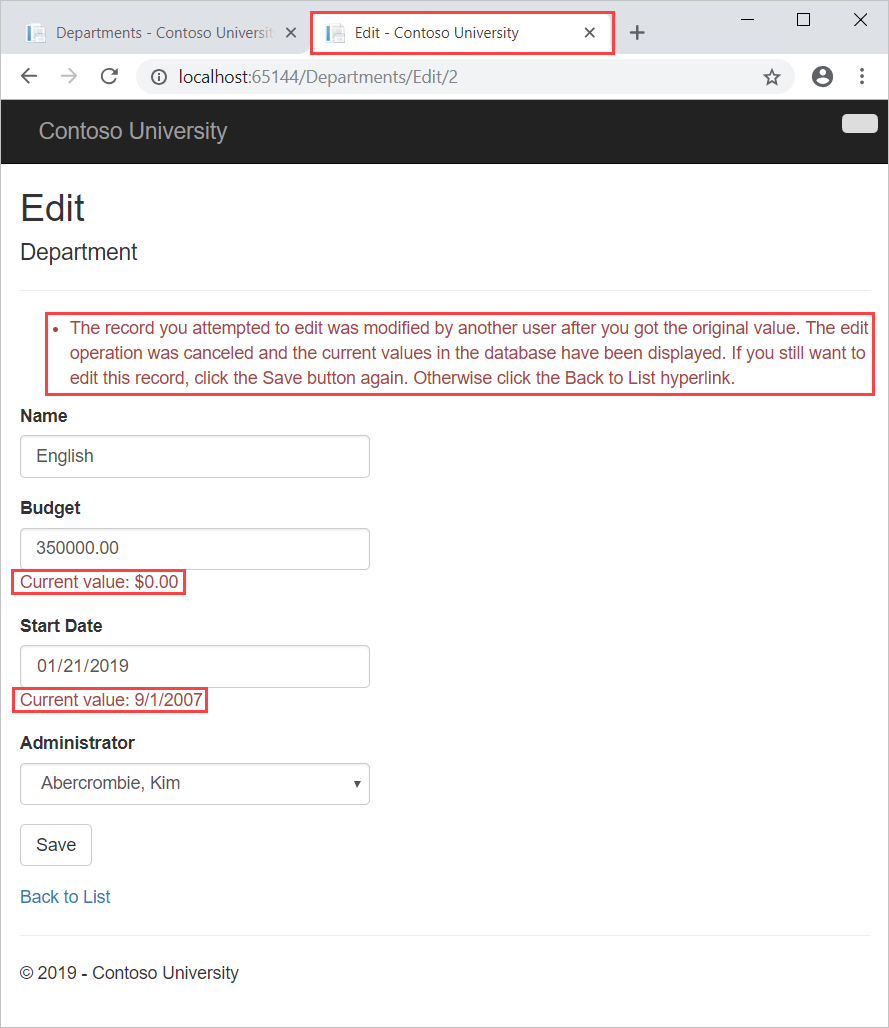
                ModelState.AddModelError(string.Empty, "The record you attempted to edit "
                    + "was modified by another user after you got the original value. The "
                    + "edit operation was canceled and the current values in the database "
                    + "have been displayed. If you still want to edit this record, click "
                    + "the Save button again. Otherwise click the Back to List hyperlink.");
                departmentToUpdate.RowVersion = databaseValues.RowVersion;
            }
        }
        catch (RetryLimitExceededException /* dex */)
        {
            //Log the error (uncomment dex variable name and add a line here to write a log.
            ModelState.AddModelError("", "Unable to save changes. Try again, and if the problem persists, see your system administrator.");
        }
    }
    ViewBag.InstructorID = new SelectList(db.Instructors, "ID", "FullName", departmentToUpdate.InstructorID);
    return View(departmentToUpdate);
}
If the FindAsync method returns null, the department was deleted by another user. The code shown uses the posted form values to create a department entity so that the Edit page can be redisplayed with an error message. As an alternative, you wouldn't have to re-create the department entity if you display only an error message without redisplaying the department fields.
The view stores the original RowVersion value in a hidden field, and the method receives it in the rowVersion parameter. Before you call SaveChanges, you have to put that original RowVersion property value in the OriginalValues collection for the entity. Then when the Entity Framework creates a SQL UPDATE command, that command will include a WHERE clause that looks for a row that has the original RowVersionvalue.
If no rows are affected by the UPDATE command (no rows have the original RowVersion value), the Entity Framework throws a DbUpdateConcurrencyException exception, and the code in the catch block gets the affected Department entity from the exception object.
Copy
C#
var entry = ex.Entries.Single();
This object has the new values entered by the user in its Entity property, and you can get the values read from the database by calling the GetDatabaseValues method.
Copy
C#
var clientValues = (Department)entry.Entity;
var databaseEntry = entry.GetDatabaseValues();
The GetDatabaseValues method returns null if someone has deleted the row from the database; otherwise, you have to cast the returned object to the Department class in order to access the Department properties. (Because you already checked for deletion, databaseEntry would be null only if the department was deleted after FindAsync executes and before SaveChanges executes.)
Copy
C#
if (databaseEntry == null)
{
    ModelState.AddModelError(string.Empty,
        "Unable to save changes. The department was deleted by another user.");
}
else
{
    var databaseValues = (Department)databaseEntry.ToObject();
Next, the code adds a custom error message for each column that has database values different from what the user entered on the Edit page:
Copy
C#
if (databaseValues.Name != currentValues.Name)
    ModelState.AddModelError("Name", "Current value: " + databaseValues.Name);
    // ...
A longer error message explains what happened and what to do about it:
Copy
C#
ModelState.AddModelError(string.Empty, "The record you attempted to edit "
    + "was modified by another user after you got the original value. The"
    + "edit operation was canceled and the current values in the database "
    + "have been displayed. If you still want to edit this record, click "
    + "the Save button again. Otherwise click the Back to List hyperlink.");
Finally, the code sets the RowVersion value of the Department object to the new value retrieved from the database. This new RowVersion value will be stored in the hidden field when the Edit page is redisplayed, and the next time the user clicks Save, only concurrency errors that happen since the redisplay of the Edit page will be caught.
In Views\Department\Edit.cshtml, add a hidden field to save the RowVersion property value, immediately following the hidden field for the DepartmentID property:
Copy
cshtml
@model ContosoUniversity.Models.Department

@{
    ViewBag.Title = "Edit";
}

<h2>Edit</h2>

@using (Html.BeginForm())
{
    @Html.AntiForgeryToken()
    
    <div class="form-horizontal">
        <h4>Department</h4>
        <hr />
        @Html.ValidationSummary(true)
        @Html.HiddenFor(model => model.DepartmentID)
        @Html.HiddenFor(model => model.RowVersion)

Testing Optimistic Concurrency Handling

Run the site and click Departments:
Department_Index_page_before_edits
Right click the Edit hyperlink for the English department and select Open in new tab, then click the Edit hyperlink for the English department. The two tabs display the same information.
Department_Edit_page_before_changes
Change a field in the first browser tab and click Save.
Department_Edit_page_1_after_change
The browser shows the Index page with the changed value.
Departments_Index_page_after_first_budget_edit
Change a field in the second browser tab and click Save.
Department_Edit_page_2_after_change
Click Save in the second browser tab. You see an error message:
Department_Edit_page_2_after_clicking_Save
Click Save again. The value you entered in the second browser tab is saved along with the original value of the data you changed in the first browser. You see the saved values when the Index page appears.
Department_Index_page_with_change_from_second_browser

Updating the Delete Page

For the Delete page, the Entity Framework detects concurrency conflicts caused by someone else editing the department in a similar manner. When the HttpGet Delete method displays the confirmation view, the view includes the original RowVersion value in a hidden field. That value is then available to the HttpPost Delete method that's called when the user confirms the deletion. When the Entity Framework creates the SQL DELETE command, it includes a WHERE clause with the original RowVersion value. If the command results in zero rows affected (meaning the row was changed after the Delete confirmation page was displayed), a concurrency exception is thrown, and the HttpGet Delete method is called with an error flag set to true in order to redisplay the confirmation page with an error message. It's also possible that zero rows were affected because the row was deleted by another user, so in that case a different error message is displayed.
In DepartmentController.cs, replace the HttpGet Delete method with the following code:
Copy
C#
public async Task<ActionResult> Delete(int? id, bool? concurrencyError)
{
    if (id == null)
    {
        return new HttpStatusCodeResult(HttpStatusCode.BadRequest);
    }
    Department department = await db.Departments.FindAsync(id);
    if (department == null)
    {
        if (concurrencyError.GetValueOrDefault())
        {
            return RedirectToAction("Index");
        }
        return HttpNotFound();
    }

    if (concurrencyError.GetValueOrDefault())
    {
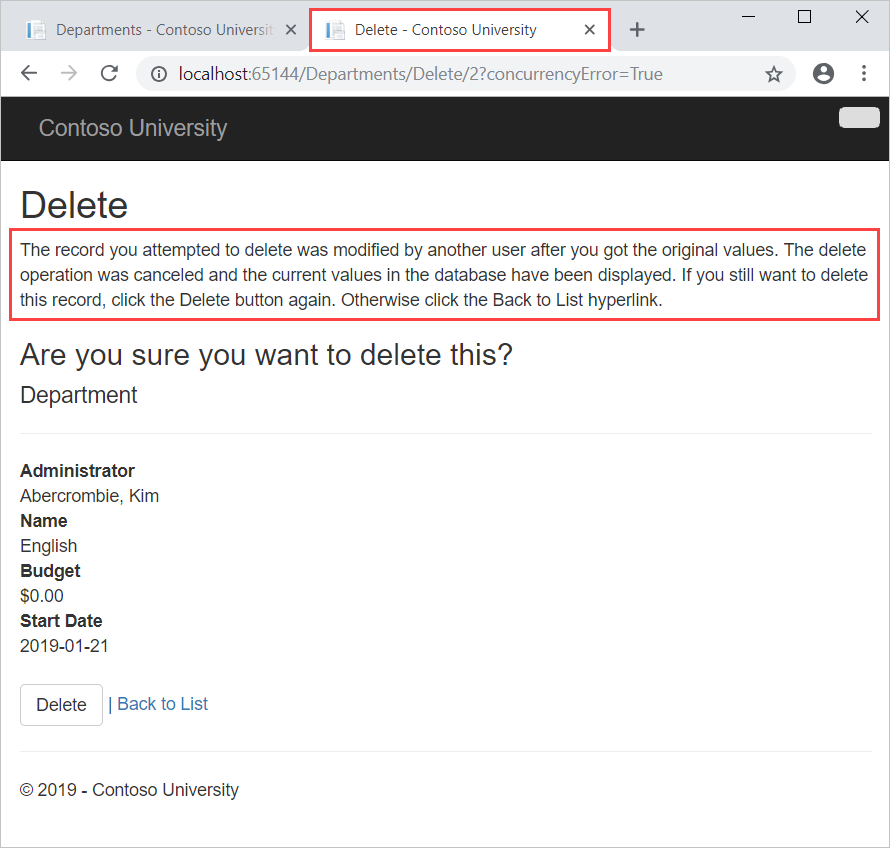
        ViewBag.ConcurrencyErrorMessage = "The record you attempted to delete "
            + "was modified by another user after you got the original values. "
            + "The delete operation was canceled and the current values in the "
            + "database have been displayed. If you still want to delete this "
            + "record, click the Delete button again. Otherwise "
            + "click the Back to List hyperlink.";
    }

    return View(department);
}
The method accepts an optional parameter that indicates whether the page is being redisplayed after a concurrency error. If this flag is true, an error message is sent to the view using a ViewBag property.
Replace the code in the HttpPost Delete method (named DeleteConfirmed) with the following code:
Copy
C#
[HttpPost]
[ValidateAntiForgeryToken]
public async Task<ActionResult> Delete(Department department)
{
    try
    {
        db.Entry(department).State = EntityState.Deleted;
        await db.SaveChangesAsync();
        return RedirectToAction("Index");
    }
    catch (DbUpdateConcurrencyException)
    {
        return RedirectToAction("Delete", new { concurrencyError = true, id=department.DepartmentID });
    }
    catch (DataException /* dex */)
    {
        //Log the error (uncomment dex variable name after DataException and add a line here to write a log.
        ModelState.AddModelError(string.Empty, "Unable to delete. Try again, and if the problem persists contact your system administrator.");
        return View(department);
    }
}
In the scaffolded code that you just replaced, this method accepted only a record ID:
Copy
C#
public async Task<ActionResult> DeleteConfirmed(int id)
You've changed this parameter to a Department entity instance created by the model binder. This gives you access to the RowVersion property value in addition to the record key.
Copy
C#
public async Task<ActionResult> Delete(Department department)
You have also changed the action method name from DeleteConfirmed to Delete. The scaffolded code named the HttpPost Delete method DeleteConfirmed to give the HttpPost method a unique signature. ( The CLR requires overloaded methods to have different method parameters.) Now that the signatures are unique, you can stick with the MVC convention and use the same name for the HttpPost and HttpGet delete methods.
If a concurrency error is caught, the code redisplays the Delete confirmation page and provides a flag that indicates it should display a concurrency error message.
In Views\Department\Delete.cshtml, replace the scaffolded code with the following code that adds an error message field and hidden fields for the DepartmentID and RowVersion properties. The changes are highlighted.
Copy
cshtml
@model ContosoUniversity.Models.Department

@{
    ViewBag.Title = "Delete";
}

<h2>Delete</h2>

<p class="error">@ViewBag.ConcurrencyErrorMessage</p>

<h3>Are you sure you want to delete this?</h3>
<div>
    <h4>Department</h4>
    <hr />
    <dl class="dl-horizontal">
        <dt>
            Administrator
        </dt>

        <dd>
            @Html.DisplayFor(model => model.Administrator.FullName)
        </dd>

        <dt>
            @Html.DisplayNameFor(model => model.Name)
        </dt>

        <dd>
            @Html.DisplayFor(model => model.Name)
        </dd>

        <dt>
            @Html.DisplayNameFor(model => model.Budget)
        </dt>

        <dd>
            @Html.DisplayFor(model => model.Budget)
        </dd>

        <dt>
            @Html.DisplayNameFor(model => model.StartDate)
        </dt>

        <dd>
            @Html.DisplayFor(model => model.StartDate)
        </dd>

    </dl>

    @using (Html.BeginForm()) {
        @Html.AntiForgeryToken()
        @Html.HiddenFor(model => model.DepartmentID)
        @Html.HiddenFor(model => model.RowVersion)

        <div class="form-actions no-color">
            <input type="submit" value="Delete" class="btn btn-default" /> |
            @Html.ActionLink("Back to List", "Index")
        </div>
    }
</div>
This code adds an error message between the h2 and h3 headings:
Copy
cshtml
<p class="error">@ViewBag.ConcurrencyErrorMessage</p>
It replaces LastName with FullName in the Administrator field:
Copy
cshtml
<dt>
  Administrator
</dt>
<dd>
  @Html.DisplayFor(model => model.Administrator.FullName)
</dd>
Finally, it adds hidden fields for the DepartmentID and RowVersion properties after the Html.BeginForm statement:
Copy
cshtml
@Html.HiddenFor(model => model.DepartmentID)
@Html.HiddenFor(model => model.RowVersion)
Run the Departments Index page. Right click the Delete hyperlink for the English department and select Open in new tab, then in the first tab click the Edit hyperlink for the English department.
In the first window, change one of the values, and click Save :
Department_Edit_page_after_change_before_delete
The Index page confirms the change.
Departments_Index_page_after_budget_edit_before_delete
In the second tab, click Delete.
Department_Delete_confirmation_page_before_concurrency_error
You see the concurrency error message, and the Department values are refreshed with what's currently in the database.
Department_Delete_confirmation_page_with_concurrency_error
If you click Delete again, you're redirected to the Index page, which shows that the department has been deleted.

Summary

This completes the introduction to handling concurrency conflicts. For information about other ways to handle various concurrency scenarios, seeOptimistic Concurrency Patterns and Working with Property Values on MSDN. The next tutorial shows how to implement table-per-hierarchy inheritance for the Instructor and Student entities.
Reference : https://docs.microsoft.com/en-us/aspnet/mvc/overview/getting-started/getting-started-with-ef-using-mvc/handling-concurrency-with-the-entity-framework-in-an-asp-net-mvc-application